Exploring Ptyxis: Tab Management and Color Schemes
Streamlined Tab Management and Overview
The first thing users notice when launching Ptyxis is its innovative tab and overview system. Unlike traditional terminal emulators such as GNOME Terminal or Kitty, which rely on a static tab bar, Ptyxis introduces a visual tab selector strikingly similar to the GNOME Activities overview. This design choice makes multitasking across multiple terminal sessions far more intuitive.
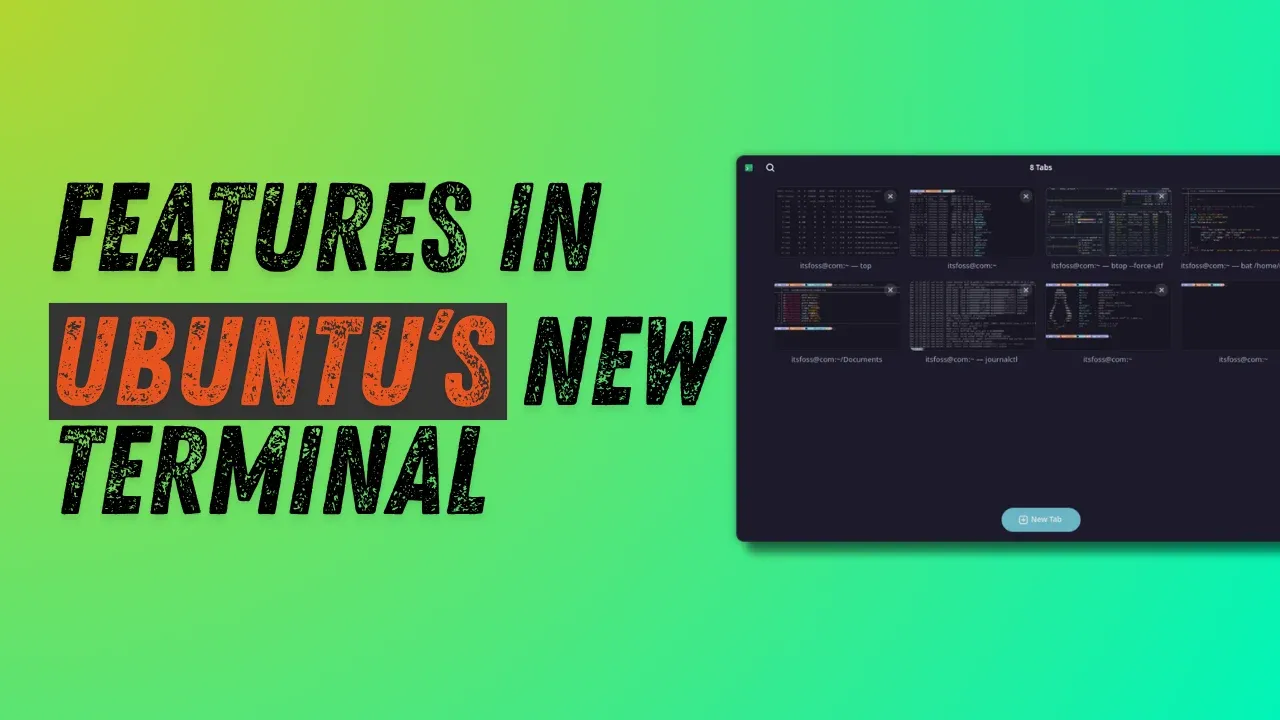
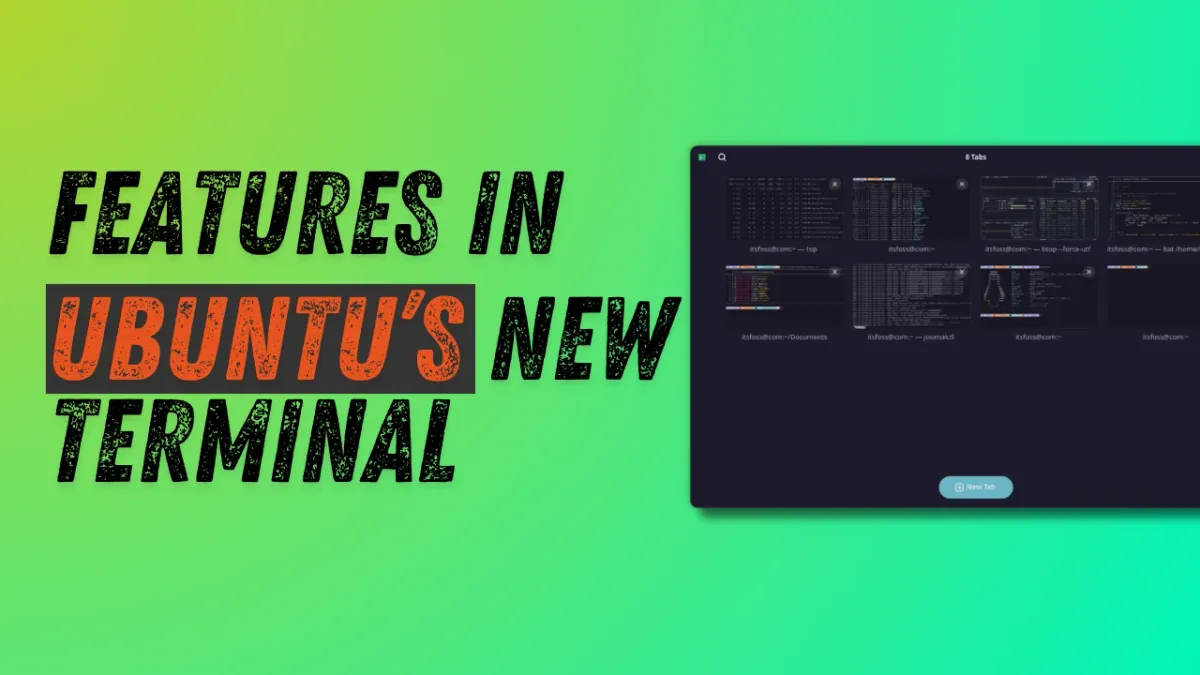
To access the tab overview, click the Show open tabs button located in the top-right corner of the title bar. This action reveals a spacious interface where each open tab displays its title alongside a miniature preview of its content. This preview lets you quickly identify what is running in each session without switching to it fully, saving time and reducing mental overhead.
The flexibility does not end there. Within the overview, you can drag and drop tabs to rearrange their order to match your workflow. Pinning important tabs keeps them always visible at the top of the list, ensuring critical sessions remain easily accessible. Additionally, you can custom name your tabs by right-clicking and selecting Set title. You may either prepend a custom label to the default process name or assign a completely unique title. Once named, use the search button in the top-left of the title bar to locate any tab instantly. This feature becomes invaluable when managing a large number of active sessions simultaneously, as it eliminates the need to scroll through endless lists or guess the purpose of each tab.
Overall, the tab overview system transforms the way you organize terminal work. It brings the same clarity and efficiency found in modern desktop environments directly into your command line sessions.
Extensive Color Scheme Options
Another standout feature of Ptyxis is its robust support for preset color schemes. To explore these, open the Preferences window via the three-dots menu in the top-right of the title bar. Navigate to the Appearance tab and click the Show all palettes button. A comprehensive list of color schemes appears, each presented with a clean preview. Selecting a scheme applies it immediately—no restart required.
The variety of palettes caters to different preferences and accessibility needs. Whether you favor high-contrast themes for better readability, dark themes for reduced eye strain, or vibrant schemes for aesthetic pleasure, Ptyxis has a preset for you. The immediate feedback allows you to test multiple options without interrupting your workflow.
Beyond the presets, Ptyxis also supports custom color configuration for advanced users. You can define your own terminal colors by editing the preferences directly, though this requires some knowledge of terminal color codes. For most users, the preset list offers more than enough flexibility to tailor the terminal’s look to their liking.
This focus on visual customization is a welcome addition. Many terminal emulators treat color schemes as an afterthought, offering only a handful of options buried in configuration files. Ptyxis places this feature front and center, making it easy to personalize your terminal environment.
Note: The screenshots in the original article used a customized prompt; the default Ptyxis terminal appearance may differ. Customization configs are available in the official repository.