Running VMware Workstation Pro on Ubuntu 26.04 LTS: A Complete Installation Guide
Overview
VMware Workstation Pro is one of the most powerful virtualization platforms available, and with the release of version 26H1, it now officially supports Ubuntu 26.04 LTS. This guide walks you through installing the free (for personal use) Broadcom-owned VMware Workstation Pro on Ubuntu 26.04 and getting your first virtual machine up and running. Whether you're a developer testing multiple environments, a sysadmin managing labs, or a curious enthusiast, this tutorial will help you leverage the latest features on the latest long-term support distribution.

We'll cover everything from system prerequisites and downloading the correct installer to step-by-step installation, post-install configuration, and common pitfalls. By the end, you'll have a fully functional VMware Workstation Pro installation ready to run any guest OS.
Prerequisites
Before you begin, ensure your system meets the following requirements:
- Operating System: Ubuntu 26.04 LTS (64-bit) – fresh install recommended.
- Hardware: A CPU with hardware virtualization support (Intel VT-x or AMD-V). Enable it in BIOS/UEFI if disabled.
- Memory: At least 4 GB of RAM (8 GB or more recommended for running multiple VMs).
- Disk Space: At least 2 GB free for the installer, plus additional space for virtual machines.
- Internet Connection: Required to download the installer and any guest OS ISOs.
- Privileges: Sudo access or root password for installation.
- Kernel Headers and Build Tools: VMWare modules need to compile against your kernel. Ensure you have the following packages installed:
sudo apt update && sudo apt install build-essential linux-headers-$(uname -r)
If you're on a fresh Ubuntu 26.04 install, run the above command first. Missing headers are a common cause of module load failures.
Step-by-Step Instructions
1. Download the VMware Workstation Pro Installer
Visit the official VMware download page for Workstation Pro 26H1. Look for the Linux bundle (.bundle file). As of this writing, the filename is similar to VMware-Workstation-Full-26.1.0-XXXXXX.x86_64.bundle. Save it to your home directory or a Downloads folder. Verify the file's integrity using the provided SHA256 checksum if you wish.
2. Make the Installer Executable
Open a terminal and navigate to the directory containing the downloaded bundle. Then run:
chmod +x VMware-Workstation-Full-26*.bundle3. Run the Installer
Execute the bundle with sudo to ensure it has the necessary permissions to install system-wide components:
sudo ./VMware-Workstation-Full-26*.bundleThe graphical installer will launch. If you prefer a command-line installation, add --console to the command. Follow the on-screen prompts:
- Accept the End User License Agreement.
- Choose installation directory (default is fine).
- Decide whether to enable the Core Isolation Security (optional, but recommended for security).
- Provide your username and organization (can be left blank).
- Allow kernel module compilation – the installer will compile
vmmonandvmnetmodules automatically.
4. Post-Installation Steps
After installation, launch VMware Workstation Pro from the application menu or by running vmware in the terminal. On first launch:
- Accept the license agreement for end users.
- Enter a license key if you have one, or click Use VMware Workstation Pro for Personal Use to activate the free edition. No account is required for personal use.
- Wait for the kernel modules to be loaded (you may be prompted for your sudo password again).
5. Create Your First Virtual Machine
Once the UI loads:
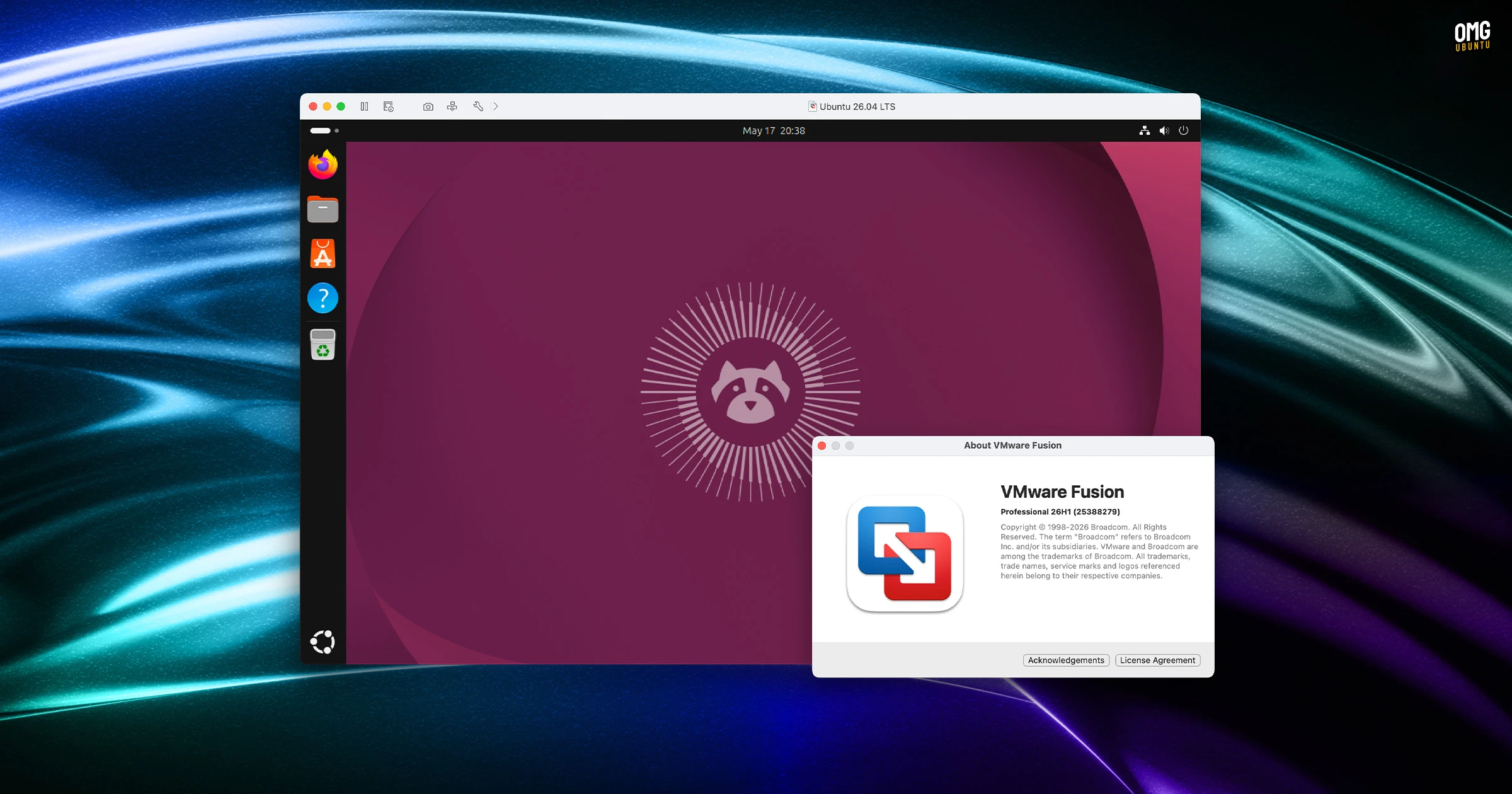
- Click Create a New Virtual Machine.
- Choose Typical (recommended) or Custom.
- Select the installer disc image file (ISO) for your guest OS (e.g., Ubuntu Server, Windows, etc.).
- Specify the guest OS type and version from the drop-down – Ubuntu 26.04 is listed as a supported guest.
- Name your VM and choose a location for its files.
- Allocate disk size and decide whether to split the virtual disk into multiple files.
- Review hardware settings – you can increase RAM or CPU cores later.
- Click Finish. The VM will start and boot from the ISO.
6. Install VMware Tools for Optimal Performance
For better graphics, mouse integration, and clipboard sharing, install VMware Tools inside the guest OS:
- From the VM menu, select VM > Install VMware Tools.
- The guest will mount a virtual CD containing the installer. On Linux guests, extract the tarball and run
./vmware-install.plas root. Follow the defaults.
Common Mistakes & Troubleshooting
Kernel Module Compilation Fails
If the installer or VMware fails to build the vmmon/vmnet modules, ensure you have the correct kernel headers installed. Re-run: sudo apt install --reinstall linux-headers-$(uname -r) build-essential. Also verify that Secure Boot is disabled or that you've signed the modules (if using Secure Boot).
VMware Launches but VMs Won't Start
Often due to virtualization not enabled in BIOS. Reboot, enter BIOS (F2, Del, etc.), and enable Intel VT-x or AMD-V. Also check that Hyper-V is not enabled on the host (if dual-booting with Windows).
No Network Connectivity in VMs
This typically means the vmnet module didn't load correctly. Run sudo modprobe vmnet and check with lsmod | grep vmnet. If missing, re-run VMware's kernel module updater: sudo vmware-config.pl.
Installation Complains About Missing Libraries
On a clean Ubuntu 26.04, some dependencies like libgtk-3-0 and libnotify4 might be missing. Install them with: sudo apt install libgtk-3-0 libnotify4 libnss3.
Summary
Ubuntu 26.04 LTS is now fully supported by VMware Workstation Pro 26H1, allowing you to run Broadcom's free virtual machine software seamlessly. In this guide, you learned how to prepare your system, download and install the bundle, configure the free personal use license, create a virtual machine, and install VMware Tools. By avoiding common mistakes like missing kernel headers or disabled hardware virtualization, you can enjoy a stable and high-performance virtualization environment on the latest Ubuntu LTS release. Whether for development, testing, or learning, VMware Workstation Pro on Ubuntu 26.04 is a powerful combination.