Mastering USB-C: A Complete Guide to Choosing the Right Cable
Introduction
USB-C promised to be the one cable to rule them all—a sleek, reversible connector that could handle data, video, and power. Yet, as any tech enthusiast knows, that promise came with a catch. Different cables support different speeds, power levels, and features. The result? A confusing market where a USB-C cable might be perfect for charging your phone but useless for connecting a monitor. This guide will walk you through everything you need to know before buying your next USB-C cable, so you can avoid the pitfalls and get exactly what your devices need.
What You Need
- Your devices – Identify which gadgets you’ll be connecting (e.g., laptop, smartphone, tablet, monitor, external drive)
- Understanding of your device specs – Check their manuals or product pages for USB generation (e.g., USB 3.2, USB4), power requirements (watts), and supported alternate modes (DisplayPort, Thunderbolt)
- Knowledge of cable markings – Look for logos and text on existing cables (e.g., “10Gbps”, “240W”, “Thunderbolt 4”)
- A reliable source for purchasing – Stick to reputable brands or USB-IF certified products to ensure performance and safety
- Optional: A USB-C tester – A small device that can verify cable capabilities (useful if you’re often troubleshooting)
Step-by-Step Guide to Choosing the Right USB-C Cable
Step 1: Understand the USB-C Connector
The USB-C connector is small, reversible, and can carry many signals. But not all USB-C ports or cables are equal. Start by familiarizing yourself with the basic shape: 24 pins in a symmetrical design. The cable’s internal wiring determines what it can actually handle. For example, some cables only have USB 2.0 data lines (enough for charging but slow for data), while others include high-speed lanes for USB 3.2 or USB4.
Step 2: Check the USB Generation
USB-C is just the connector shape. Underneath, it can support different USB generations:
- USB 2.0 – Up to 480 Mbps. Common in cheap charging cables.
- USB 3.2 Gen 1 – Up to 5 Gbps (like USB 3.0).
- USB 3.2 Gen 2 – Up to 10 Gbps.
- USB 3.2 Gen 2x2 – Up to 20 Gbps.
- USB4 – Up to 40 Gbps (often overlaps with Thunderbolt 3/4).
Look for “10Gbps” or “USB 3.2” markings on the cable or its packaging. If you only need charging, a USB 2.0 cable works fine—but for fast file transfers, go higher.
Step 3: Verify Power Delivery (PD) Capability
USB Power Delivery (PD) allows high power transfer over USB-C. Standard USB-C can handle up to 60W (3A at 20V). But specialized cables can deliver up to 240W (Extended Power Range). Steps:
- Check your device’s charger wattage (e.g., a laptop may need 65W or 100W).
- Look for “PD” or “240W” on the cable. Many cables are only rated for 60W.
- For fast charging laptops, buy a cable explicitly supporting your wattage (e.g., 100W/240W).
Using a cable that can’t handle the required power may cause slow charging or damage.
Step 4: Confirm Alternate Mode Support
USB-C can carry video signals via DisplayPort Alternate Mode or Thunderbolt. To connect a monitor:
- Check if your device supports DisplayPort over USB-C (common in laptops and tablets).
- If you need high-bandwidth video with daisy-chaining, look for Thunderbolt 3 or Thunderbolt 4 cables (40Gbps). These are often marked with a lightning bolt icon.
- Some cables are “passive” (shorter, cheaper) vs “active” (longer, more expensive for Thunderbolt).
If your cable lacks alternate mode support, it won’t work for external displays.
Step 5: Look for the e-Marker Chip
USB-C cables that support 5A (100W) or high-speed data (USB 3.2 Gen 2 or USB4) must contain an e-marker chip. This chip communicates cable capabilities (current, voltage, data speed) to the connected devices. If you plug a high-power charger into a cable without the chip, it may limit charging. Always verify that the cable description mentions “e-marked” if you intend to use it for fast charging or high-speed data.
Step 6: Buy According to Your Primary Use Case
Now combine everything into a purchasing decision:
- For charging only – Choose a USB 2.0 cable with the correct power rating (e.g., 3A for phones, 5A for laptops).
- For data transfer – Match the cable generation to your device’s port (e.g., USB 3.2 Gen 2 cable for a 10Gbps port).
- For video – Pick a cable that explicitly supports DisplayPort or Thunderbolt (check reviews!).
- For universal use – Invest in a high-quality USB4 or Thunderbolt 4 cable (40Gbps, 100W, video support) – it works with almost everything.
Remember that cable length affects speed and power. For USB 3.2 Gen 2 (10Gbps), keep cables under 1 meter for best performance. For Thunderbolt, active cables can go longer (up to 2m).
Tips for a Smooth USB-C Experience
- Buy certified cables – Look for the USB-IF (Implementers Forum) logo. This ensures the cable meets official specifications and won’t damage your devices.
- Avoid ultra-cheap cables – They often lack e-markers, have poor shielding, and can draw excess current, potentially frying your hardware.
- Test before buying bulk – If possible, try a single cable with your device to confirm compatibility, especially for video and Thunderbolt.
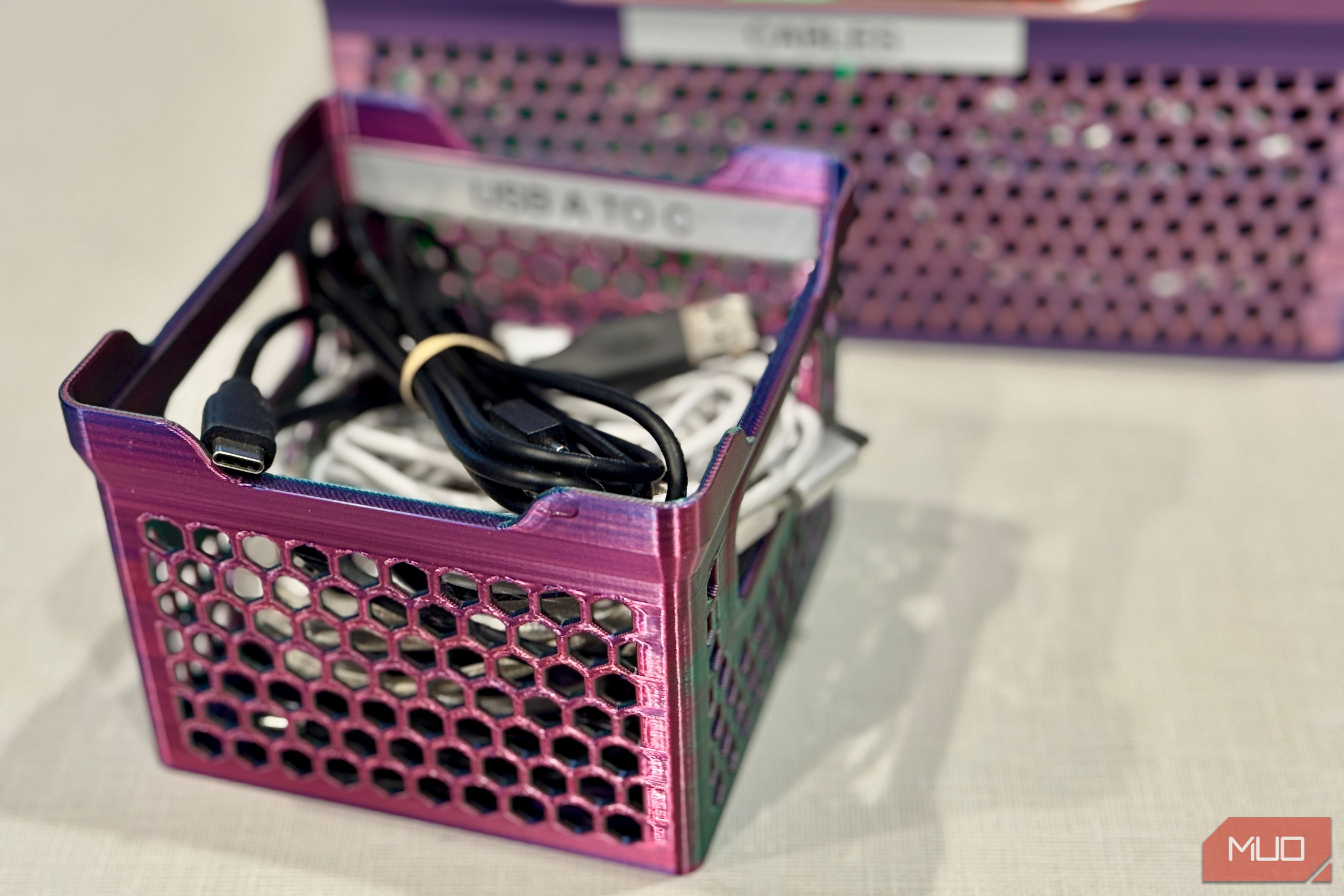
- Keep track of usage – Label cables if you own multiple for different tasks (e.g., “charging only”, “data 10Gbps”, “Thunderbolt”).
- Check for firmware updates – Some newer devices (like laptops) update USB-C port capabilities via BIOS updates; keep your system current.
- Visit the USB-IF website for lists of certified cables and products.
USB-C is a powerful technology, but only when you choose the right cable for the job. By following these steps, you can cut through the confusion and make informed purchases every time.