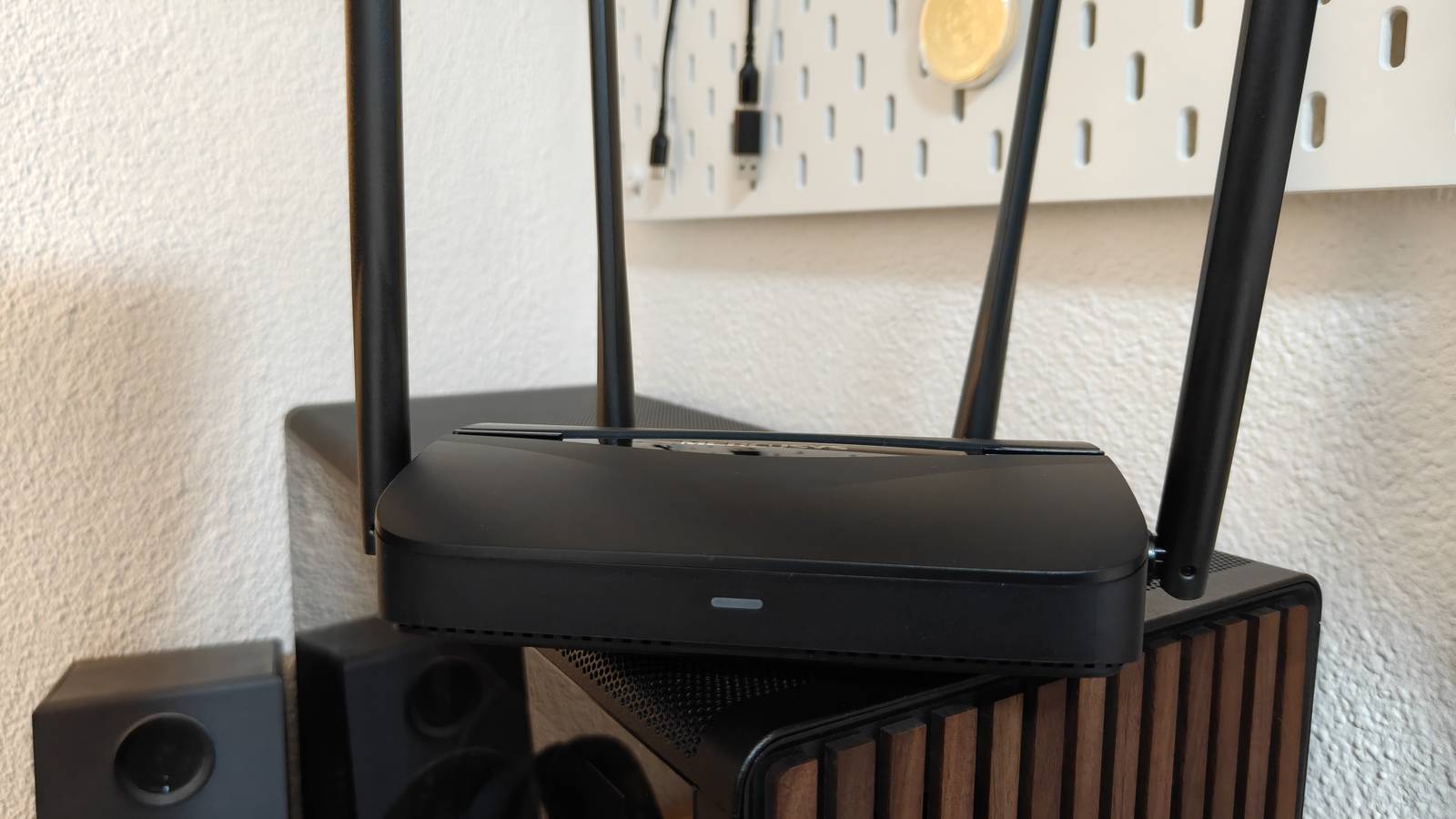
Upgrade Your Router Without Reconnecting Every Device: The Simple SSID Trick
The Annoyance of Router Upgrades
Upgrading your home router promises faster speeds, better range, and more reliable connections. Yet the process often feels like a frustrating chore: after plugging in the new hardware, you must manually reconnect every smartphone, laptop, tablet, smart TV, thermostat, and light bulb. It's time-consuming and error-prone. But what if you could skip most of that hassle?
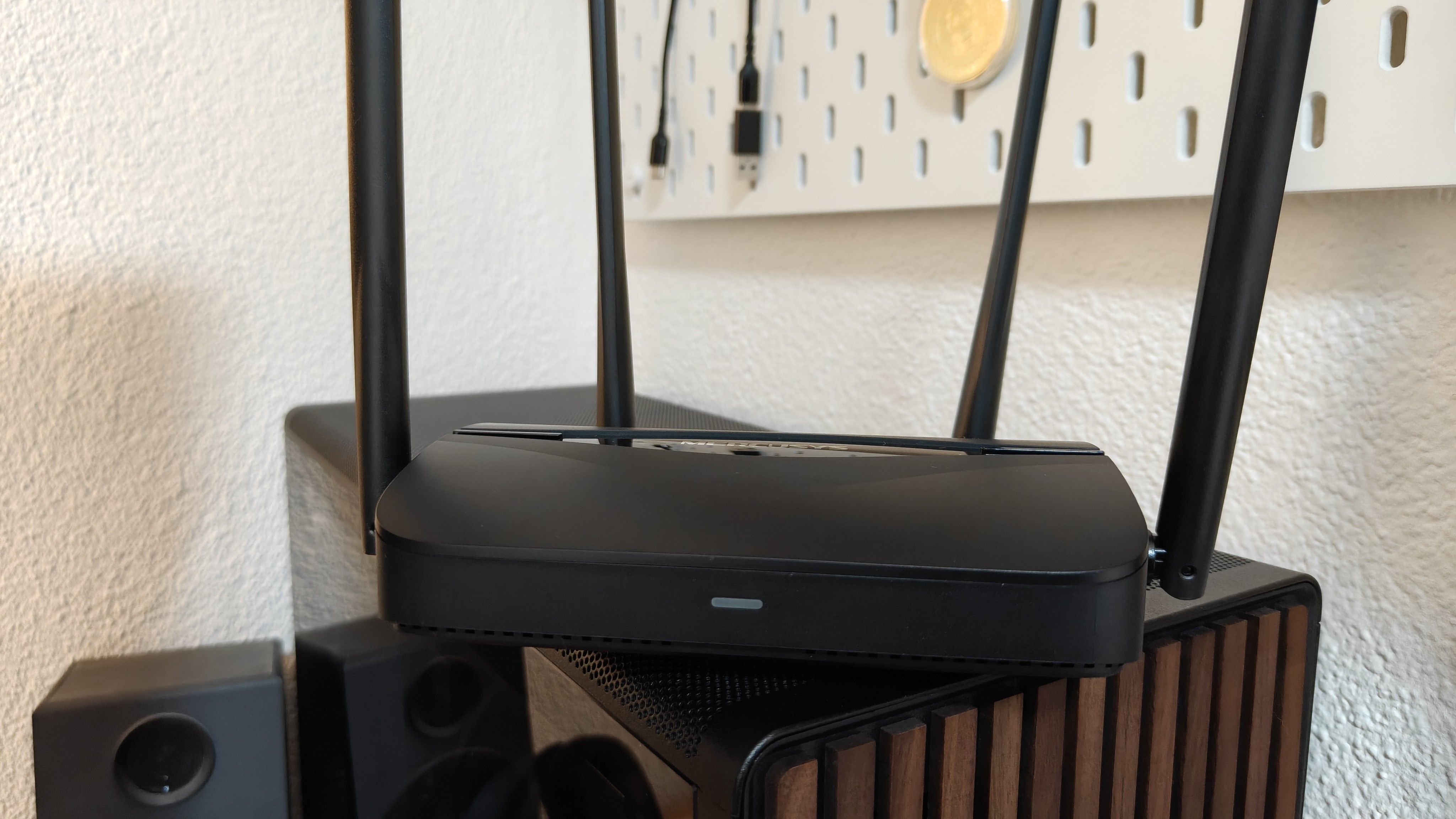
Why Reconnecting Is a Pain
Each Wi‑Fi device stores the network name (SSID) and password of your current router. When you swap routers, the old SSID no longer exists, so devices cannot automatically join the new network. You then have to dig into each device's Wi‑Fi settings, forget the old network, select the new one, and type in a password. For a typical household with 10–20 devices, this can take an hour or more. Smart home gadgets like plugs and bulbs often require re‑pairing through their apps, adding extra steps.
The Simple Solution: Reuse Your Network Name
The trick is to configure your new router with the exact same SSID (network name) and password that your old router used. When devices scan for Wi‑Fi, they see a network they already know—and they automatically connect, just as if nothing changed. No reconfiguration needed.
How It Works
Wi‑Fi clients identify a network primarily by its SSID, not by the router's MAC address. As long as the SSID and security settings (most commonly WPA2 or WPA3) match, devices will trust the new router. The same encryption key unlocks the connection seamlessly. This works across brands—your old Netgear settings can be reused on a new TP‑Link router without issue.
What to Watch Out For
This method is safe, but keep these points in mind:
- Security settings must match exactly. If your old router used WPA2 and your new one defaults to WPA3, some older devices may refuse to connect. Set the new router to the same security standard or use a mixed mode.
- Same password, same SSID – no special characters missing. Ensure you type them identically, including case sensitivity.
- Static IP assignments. If you had static IPs set up in your old router, you'll need to replicate them in the new one. But dynamic devices (phones, laptops) work fine automatically.
- Routers from different ISPs. Some ISP‑locked routers use unique SSID suffixes; you can override these in the admin settings.
Step‑by‑Step Guide
Follow these simple steps to upgrade your router without reconnecting every device.
Before You Start
- Log into your current router and note down its SSID and password. Also check the security mode (e.g., WPA2‑PSK).
- Take a screenshot or photo of any other settings you may want to carry over, such as port forwarding or DHCP reservations.
- Ensure the new router is fully powered and ready for configuration (usually via its default IP address or app).
Configuring Your New Router
- Connect a computer directly to the new router using an Ethernet cable (or follow the manufacturer's app setup).
- Open the router's admin interface (typically
192.168.1.1or192.168.0.1). Use the default admin username and password printed on the router label. - Navigate to the Wireless Settings or Wi‑Fi section.
- Enter the exact SSID from your old router. Use the same spelling, spaces, and case.
- Set the security mode to the same one your old router used (e.g., WPA2‑PSK).
- Enter the exact password (Wi‑Fi key) from your old router.
- Save the settings. The router will restart and broadcast your familiar network.
Final Checks
- After the new router restarts, wait a minute for devices to reconnect automatically. Most will latch on within 30 seconds.
- Check a few devices—your phone, laptop, and a smart speaker—to confirm they show connected to Wi‑Fi with full signals.
- If a device fails to connect, it likely uses a static IP or a different Wi‑Fi standard. Manually forget the network on that device and rejoin with the same password; this forces a fresh handshake.
- Optionally, you can rename the network later if needed. Just be ready to reconnect everything then.
Conclusion
Upgrading your router doesn't have to mean hours of reconnecting devices. By reusing the same SSID and password, you preserve your device settings and enjoy the new hardware's benefits immediately. This simple trick works across brands and generations of routers, saving you time and frustration. Next time you buy a new router, remember: the same network name is your ticket to a seamless upgrade.